
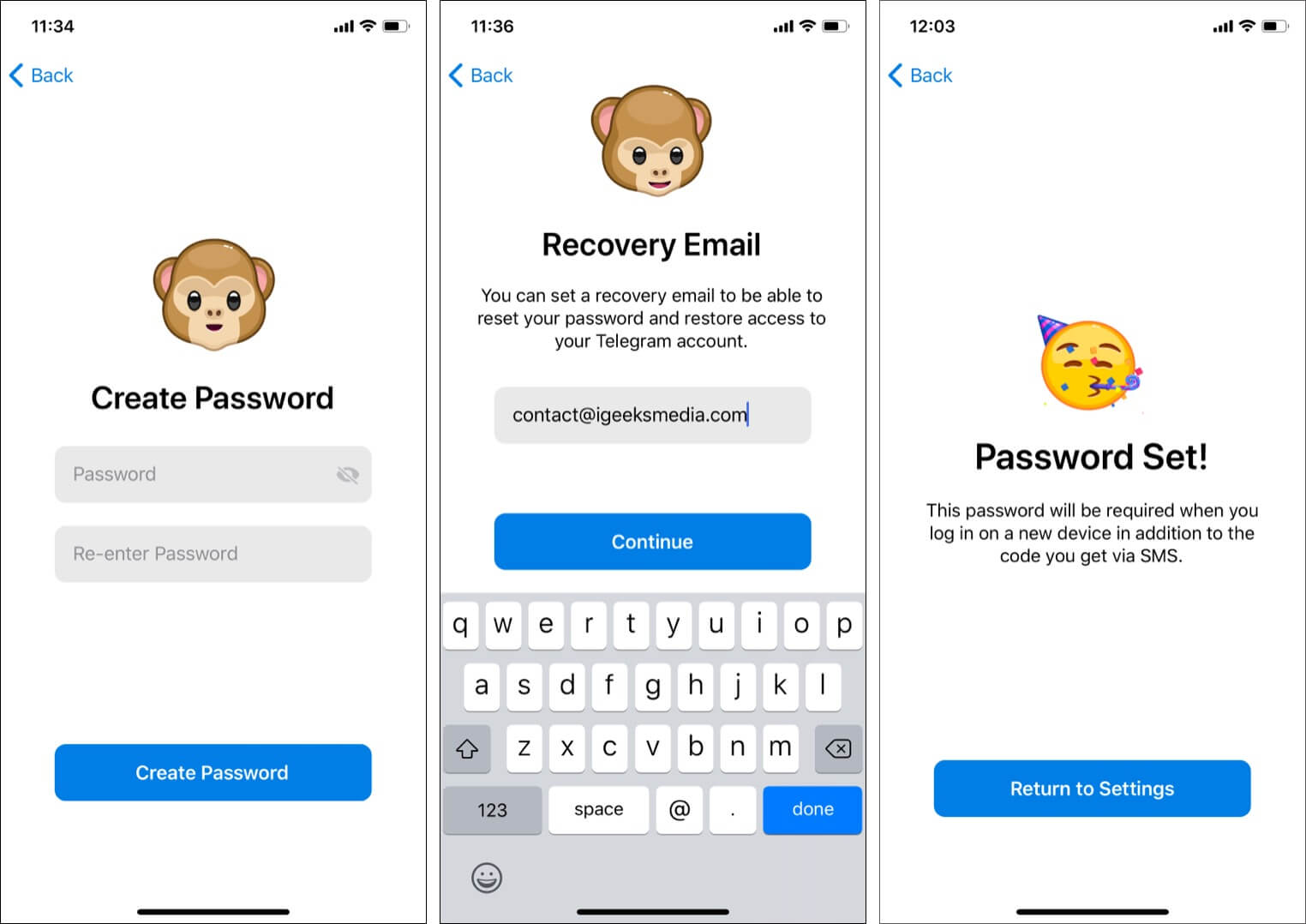
Two-Step Verification adds a password on top of your SMS or OTP login code. It protects your account if someone manages to get your login code.
Steps in Telegram
1. Open Settings
Start in Telegram and open the Settings screen.
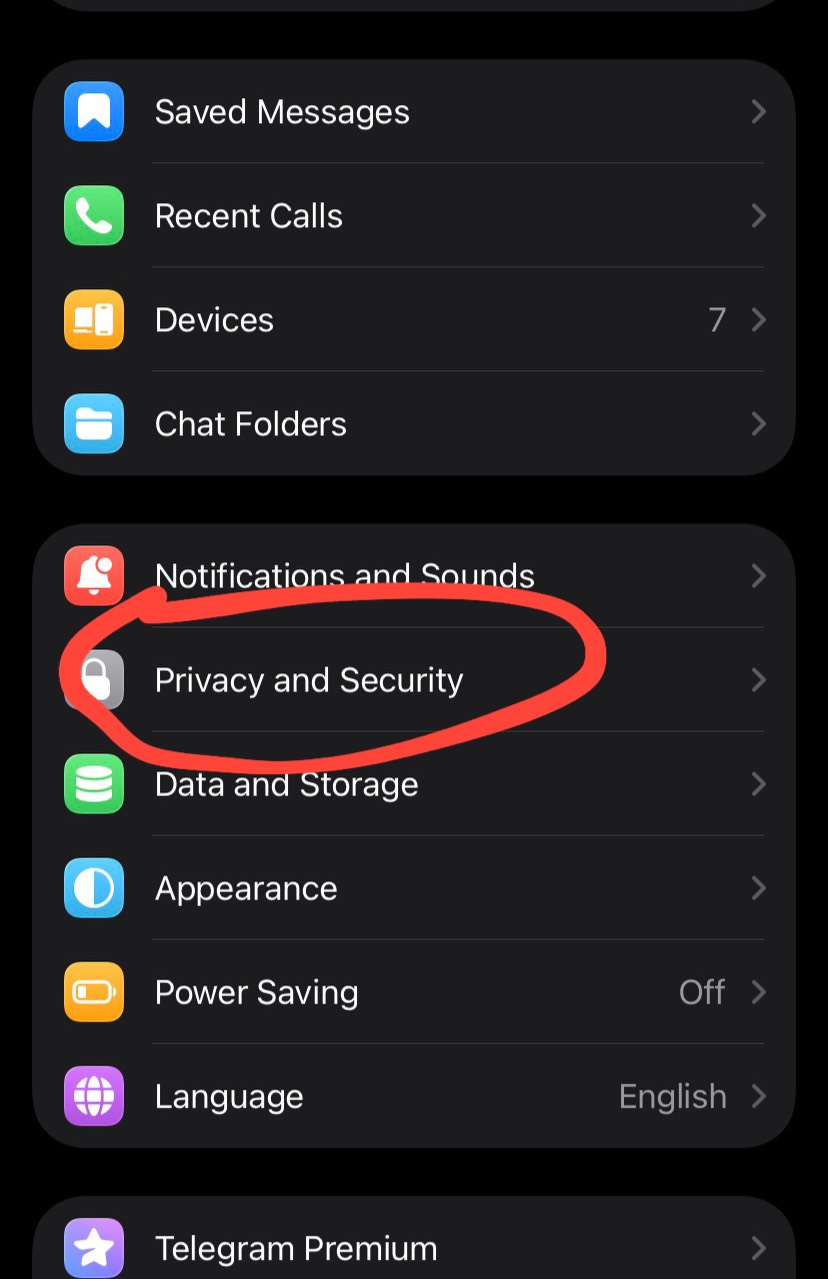
2. Choose Privacy and Security
Open Privacy and Security to reach the account protection options.
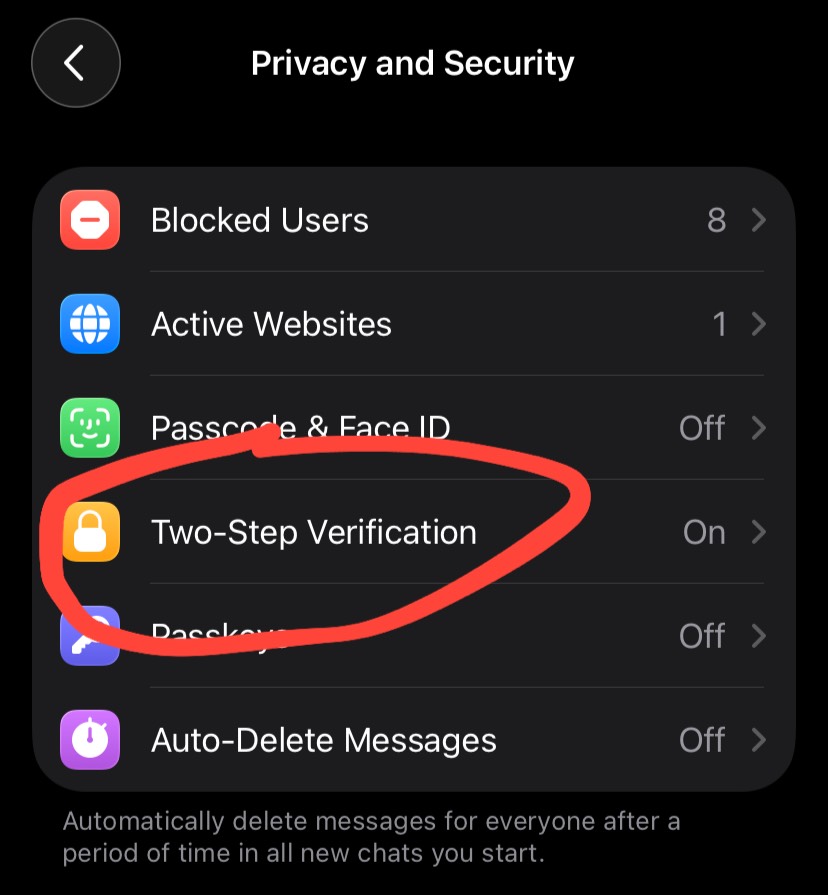
3. Set a password for Two-Step Verification
Telegram will ask you to create a new password. Use one that is different from your other PINs or account passwords.
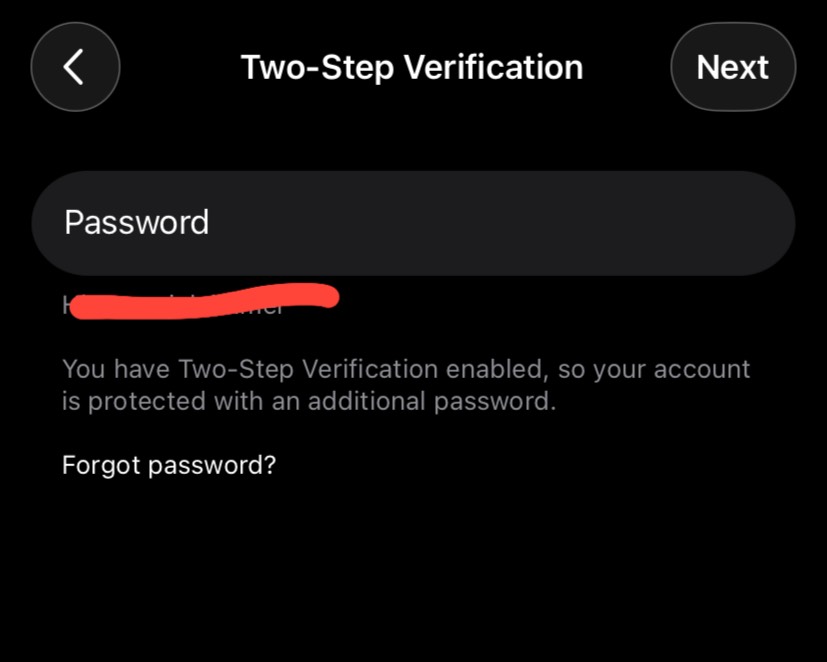
Summary
- Open Telegram and go to
Settings - Choose
Privacy and Security - Tap
Two-Step Verification - Create a password that is different from your other PINs or passwords
- Add a recovery email if you can
After you enable it
Do not share this password with anyone. If a message claims it needs that password, treat it as a scam by default.